How to install and use WS_FTP
-
First, "What is FTP?" FTP stands for "File Transfer
Protocol" and is a means of uploading files from your computer to another
computer or server.
-
Before you install and begin using the program please PRINT
THIS PAGE to refer to.
Instructions
- First download ws_ftp by clicking HERE.
(Vista users may have a pop-bar below the url. Click the bar and
choose "allow this time"). If your download doesn't start right away
you may have to hit the "HERE" link one more time. Save the program to your hard drive in a place where you can find it easily
like your desktop.
- When the download is completed find the file ws_ftple.exe
 (if you have
problems finding the file click on START and search (Windows XP), START then
"start search" in Vista. Once you've found the file click on it (or
double click if necessary) to begin installation. Accept the defaults
for the installation (Windows Vista - you must be logged on as the
Administrator and may have to answer "OK" before installing. If in
doubt, just do it. If you're not the administrator, it will tell you so.
(if you have
problems finding the file click on START and search (Windows XP), START then
"start search" in Vista. Once you've found the file click on it (or
double click if necessary) to begin installation. Accept the defaults
for the installation (Windows Vista - you must be logged on as the
Administrator and may have to answer "OK" before installing. If in
doubt, just do it. If you're not the administrator, it will tell you so.
- When the installation is complete you may be given the option to go
directly to the newly installed program. You can do so or you can
close the box and go to it by following the instructions below:
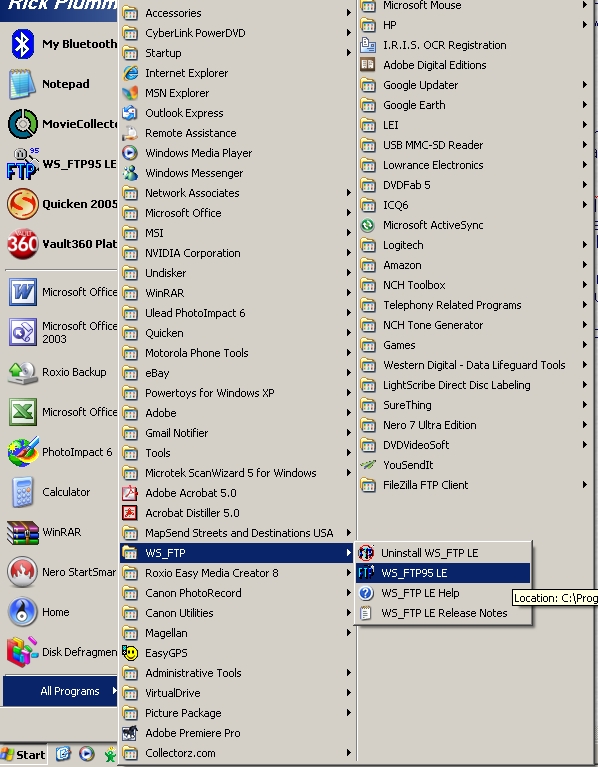
To start the program go to START, WS_FTP, then WS_FTP95 LE as shown below:
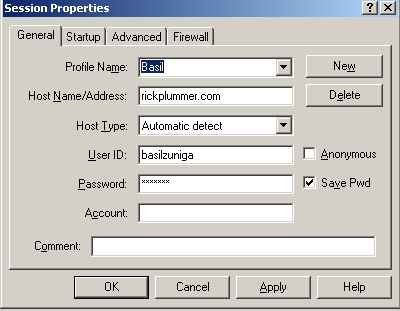
This is the first screen that you will see. Be sure you
are on the General Tab then click on NEW and type in your name under Profile
Name. Refer to the email you've received that has your user name and
password (I've used Basil as an example). Since you will be sending these
files directly to my server you will enter my server name under Host
Name/Address:. Host Type should already be set to Automatic detect.
If not, change it. Type your name (first and last with no space) into User
ID like the example "basilzuniga". Type in your password in the password
box and put a check in the "Save Pwd box". (Remember, your password is
"case-sensitive". You may also contact me to change your password to
something else if you wish. It must, however contain at least 7 letters
and numbers, of which one letter must be capitalized.
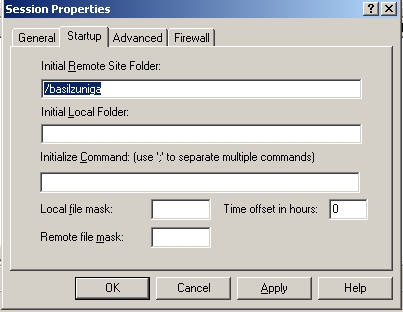
Click on the Starup Tab and under Initial Remote Site Folder,
type in a forward slash (/) and your user ID (firstlastname). Click Apply.
Click back on the general tab, click on "OK", and "pray".
If you have done everything correctly you should connect to the server.
You will see a screen similar to the one below. On the
left side are your files on your computer. On the right side is a blank
space where your file will be uploaded. To upload a file to the ftp site
simply browse to it in the left-hand pane. Once it shows on the left you
can do one of three things: drag and drop the file to the other side,
double click the file you wish to transfer, or highlight the file and select the
appropriate arrow in the middle to send it to the server.
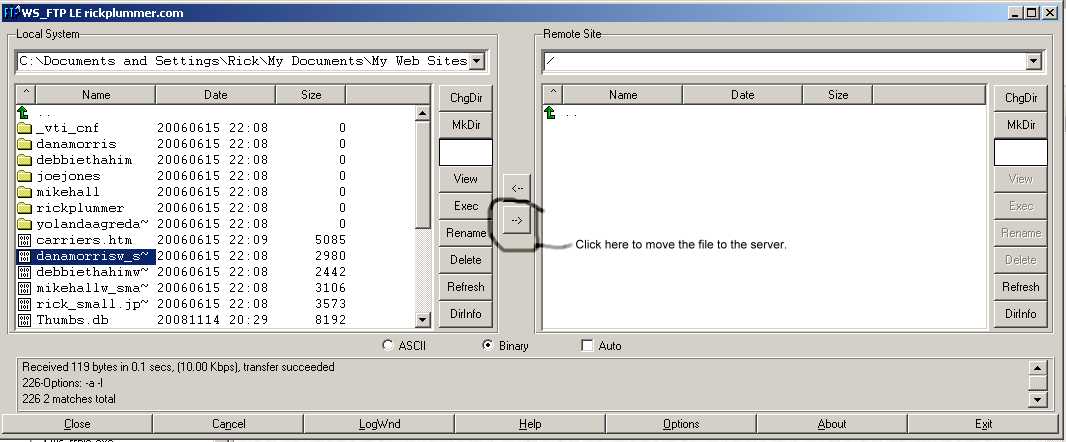
You will see the status in the bottom left corner (just above
"Close") and will hear a sound when the file has been successfully transferred.
If you have a broadband connection it should go very quickly. If you are
still on dial-up you may have to walk away from the computer for a few minutes
if it is a very large file.
When you're finished be sure to email your webmaster,
Rick Plummer
to let him know that you've put something there for the website. Add
instructions or information about the upload. Or you may choose to write
your instructions or information in a word document or text file and simply
upload it when you upload your photos, data, etc.